



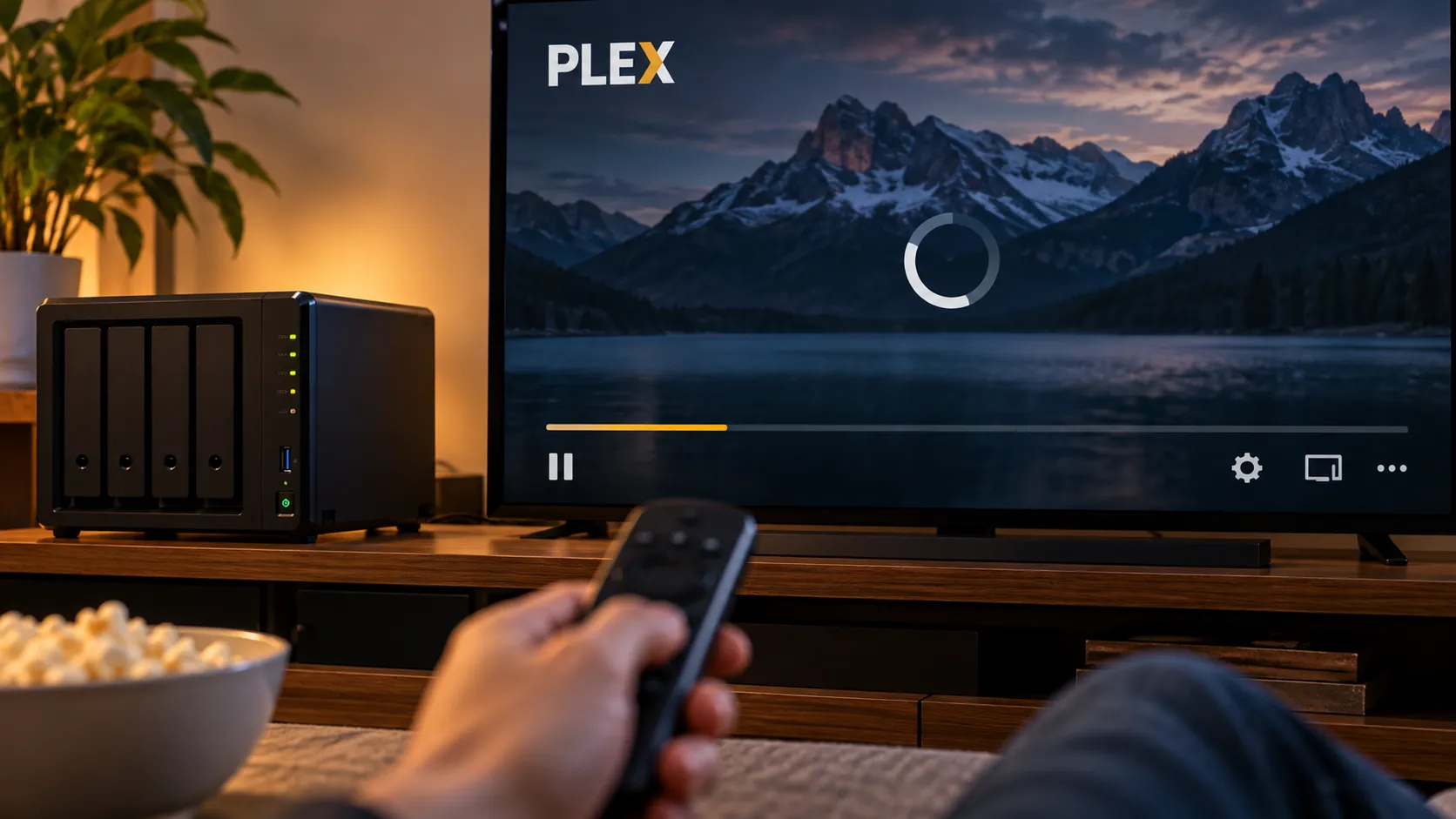
A Plex stream that stutters doesn't always mean the server needs more muscle. These Plex tips and tricks are built around one diagnostic habit: checking whether buffering comes from your network, a forced transcode, or an undersized server before you spend a dollar fixing a problem that isn't there.
Someone who adds RAM or jumps to 2.5-gigabit Ethernet the moment buffering starts may be solving the wrong problem entirely, because the right fix depends on whether the bottleneck is transcoding or the network.
Plex can Direct Play a compatible file with almost no server processing, Direct Stream compatible audio and video into a different container, or transcode incompatible media in real time. A restrictive quality or bandwidth setting can also trigger conversion, which is why checking what Plex is actually doing before buying anything is one of the more useful Plex server tips for a home setup.
One detail changes the math on hardware purchases specifically: hardware-accelerated transcoding requires an active Plex Pass. Without one, supported hardware acceleration isn't available through Plex Media Server.
This guide is for anyone whose stream is buffering, stuttering, or refusing to play, whether that's a solo setup or a server shared with family watching remotely. By the end, the goal is simple: read the dashboard correctly, match the problem to a network, settings, or hardware issue, and know whether a purchase is actually justified before making one.
Plex streaming tips: read the dashboard before changing anything
Start the stream that's giving trouble, then open the Plex web app and check the Dashboard or Activity view. Expand the active session and look at the playback details. That's where you can determine whether a session is running as Direct Play, Direct Stream, or a transcode.
Those three outcomes aren't equally demanding. Plex explains that Direct Play sends compatible media to the device unchanged and requires almost no work from the server. Direct Stream repackages otherwise compatible streams into a suitable container and also requires relatively little processing. A full video transcode converts the video itself in real time and is much more demanding.
From here, what you do next depends on what the dashboard actually says.
If the dashboard shows a transcode, check whether the client quality setting or another playback limitation is causing it before assuming the file itself is incompatible. Increasing the permitted quality or selecting Original Quality can avoid an unnecessary conversion when the network and client can handle the source file.
If the dashboard shows Direct Play or Direct Stream and the stream is still buffering, the server's video-transcoding performance is unlikely to be the problem. Work through these:
Wire down anything that doesn't move. A smart TV or set-top box can benefit from Ethernet when its wired connection is fast enough for the media you're playing.
Check phones and tablets for signal strength and router placement. Weak or congested Wi-Fi can make even a Direct Play stream buffer.
For remote viewers, confirm the actual upload bandwidth leaving the house. Assuming nothing else is bottlenecked, server-side upload bandwidth can limit the bitrate available to a remote stream.
If remote access won't connect at all rather than buffer, check the basics before suspecting a subscription problem. Confirm Remote Access is enabled and inspect Plex's reported connection status, firewall configuration, and router setup. Plex normally attempts to configure the connection automatically but also supports manual port forwarding.
The important point isn't that one dashboard check will solve every buffering problem. It's that identifying whether Plex is Direct Playing, Direct Streaming, or transcoding prevents you from troubleshooting the wrong resource.
Plex transcoding tips: fix these triggers before buying hardware
If the dashboard confirmed a transcode, the next move still isn't necessarily a purchase. Codec support, subtitles, audio formats, and playback-quality settings can all determine whether Plex converts a stream.
Switch the subtitle format, then test again. Unsupported subtitles can require Plex to burn them into the video, which triggers a full video transcode. Image-based formats such as PGS commonly require burning on clients that can't render them natively, while compatible text subtitles can avoid that workload. The exact behavior depends on the Plex app and client.
Match the audio track to the playback device, then test again. An unsupported audio format can trigger an audio transcode while leaving compatible video untouched. That's considerably lighter than re-encoding the video but can still make a session appear as something other than plain Direct Play.
Check the quality setting against the available bandwidth. Original Quality can favor Direct Play or Direct Stream when the client and connection support the source media. On a constrained remote connection, however, forcing the original bitrate can create buffering rather than solve it. Plex's Automatic quality option is specifically designed to adjust converted video to changing connection conditions, so it isn't inherently a setting that needs to be disabled.
Pre-optimize files watched most often when that makes sense. Plex's Media Optimizer can create additional versions ahead of playback. Those versions consume extra storage, and Plex still chooses among available media based on the client and playback conditions.
If you're converting files manually, target formats based on the devices that will actually play them. There isn't one H.264, H.265, audio, and container combination guaranteed to Direct Play across every Plex client.
How to optimize Plex hardware acceleration before you buy anything
If none of the above clears a persistent video transcode, check whether hardware acceleration is supported and configured correctly before assuming the server needs replacing.
Confirm acceleration is both supported and switched on. Plex supports hardware-accelerated streaming on compatible hardware, including supported Intel and NVIDIA configurations. An active Plex Pass is required. In Plex Web App, the relevant option is under Settings > Server > Transcoder > Use hardware acceleration when available.
Hardware acceleration can reduce CPU usage, improve startup times, and allow more simultaneous transcodes, although actual performance depends on the hardware, codecs, resolution, bitrate, and other characteristics of the streams.
Don't assume RAM is the bottleneck. Video transcoding is primarily a processing workload, so simply adding system memory isn't a general cure for a server that can't transcode quickly enough. Additional RAM can still matter when the same machine is running other memory-intensive services, containers, or virtual machines.
Count simultaneous streams, not just whether one stream works. Every concurrent transcode consumes processing resources. Don't rely on a generic promise that a particular Celeron or other CPU will handle a fixed number of streams, because capacity varies substantially with the exact processor, codec, resolution, bitrate, tone mapping, and whether hardware acceleration is available.
Treat 4K HDR as its own workload. Transcoding high-resolution HEVC video and performing HDR tone mapping can be substantially more demanding than handling ordinary 1080p media. If remote clients regularly need a lower-resolution version, keeping an optimized copy can sometimes avoid an expensive real-time conversion.
If acceleration is confirmed supported and active and the server is still overwhelmed by the workloads you actually run, that's when additional processing capacity becomes a reasonable upgrade.
Worth retiring as a fix: upgrading from gigabit to 2.5-gigabit Ethernet won't fix a transcode that's bottlenecked by processing power. Faster networking can help when network throughput is actually the constraint, but compute and network capacity solve different problems.
If a hardware change really is the answer, match the upgrade to the actual gap. A low-power Intel system with supported integrated graphics can make an effective Plex server because hardware video engines can take over compatible transcoding workloads. A NAS can then continue handling storage while another machine runs Plex Media Server if that architecture better fits the setup.
In a household where several people stream from the same server, a separate tool such as Tautulli can help show who's streaming, whether sessions are transcoding, and how much bandwidth they're consuming. It's a separate install from Plex itself and isn't necessary for diagnosing a single occasional stream.
Before buying anything, match the symptom to one of these:
Direct Play buffering: investigate network throughput and the client before upgrading server compute
Transcode triggered by subtitles, audio, or a playback setting: correct the trigger before buying hardware
Compatible hardware acceleration isn't enabled: confirm Plex Pass and hardware-acceleration settings
Hardware acceleration is active but real workloads still exceed server capacity: stronger compute may be justified
Who can actually watch remotely
Not every remote failure is a buffering problem. If a stream won't start at all for someone outside the house, access requirements and Remote Access configuration are worth checking separately. If it starts and then stutters, the playback diagnosis earlier in this guide still applies.
Since April 29, 2025, Plex requires one of three subscriptions for affected apps to remotely play personal video: the server administrator has an active Plex Pass, the viewer has an active Plex Pass, or the viewer has an active Remote Watch Pass.
Plex says the requirement applies to apps updated to its newer experience and is expanding to additional platforms over time. It doesn't apply to streaming music through Plexamp or photos through Plex Photos.
The scope of each option differs. An administrator's Plex Pass permits remote playback for users streaming from that server, while a Remote Watch Pass applies to the account that purchases it and doesn't include the other Plex Pass features.
Before assuming a family member is hitting a subscription requirement, make sure Plex actually sees the connection the way you expect. A local playback problem and a remote-access problem can require completely different fixes.
What to do now
The next time a stream buffers, resist the urge to order parts. Open the Plex dashboard and determine whether the session is Direct Playing, Direct Streaming, or transcoding.
If it's Direct Play or Direct Stream, investigate the network and client. If it's transcoding, check the reason, including media compatibility, subtitles, audio, and quality settings. Then confirm hardware acceleration is available and enabled before deciding the server itself is too slow.
That sequence turns a vague buffering problem into something much more useful: a network issue to chase down, a setting or media mismatch to correct, or a confirmed capacity limit that actually justifies new hardware.











Comments
Be the first, drop a comment!