



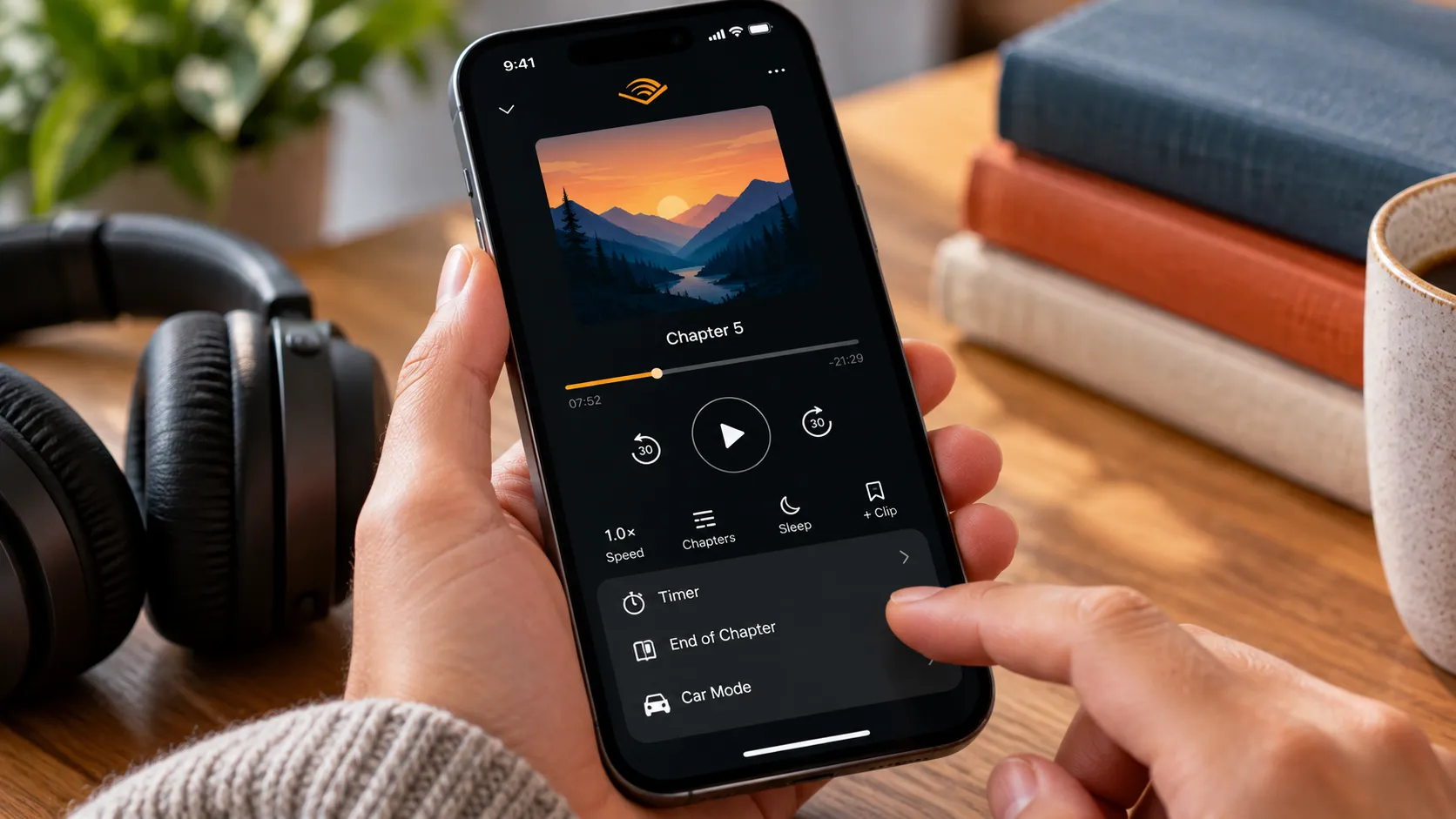
Audible's Timer sits right on the playback screen, but some of the app's more useful controls are easier to overlook. Shake to Extend lives in Player settings, while End of Chapter and finer 0.05x speed adjustments give listeners more control over when and how they listen.
Plus and Premium members get another layer of value through what Audible has long called the Plus Catalog. Audible is now renaming it the "included catalog," although the access rules remain the same. Members can stream or download included titles without a set limit, but adding one to the library or downloading it does not make it permanently owned.
This guide runs through 10 Audible tips in three areas: playback controls, included-catalog rules and tools for listeners who switch between audio and text.
Audible app settings worth changing today
1. Set the Timer and enable Shake to Extend. The Timer sits directly on the playback screen. Choose a preset or create a custom length, and Audible will stop playback when the timer expires.
For Shake to Extend, go to Profile > Settings > Player > Timer and turn on the setting. When the timer ends, shaking the phone within 30 seconds of the audio starting to fade extends it for the same amount of time, according to Audible's Timer documentation.
2. Switch to End of Chapter when you want a natural stopping point. Instead of stopping after a fixed number of minutes, End of Chapter waits until the current chapter finishes. That makes it useful for a commute, workout or other listening session where stopping mid-sentence would be annoying, as Android Authority's hands-on guide notes.
3. Fine-tune narration speed in 0.05x increments. Audible offers quick speed presets along with more granular adjustments in the app. Open a title, tap the Speed icon and choose the setting that works best for that book.
Audible also lets you set a different speed for individual titles, and those title-specific settings sync across apps. A separate default speed can be set for new listens through Profile > Settings > Player > Narration Speed.
4. Turn on Automatic Car Mode. Go to Profile > Settings > Player and enable Automatic Car Mode. Audible will launch its simplified Car Mode interface when the phone connects to the car over Bluetooth.
Car Mode provides larger controls for play and pause, jumping back 30 seconds and adding a bookmark. Audible also supports voice controls through Alexa and Siri, reducing the need to interact with the screen while driving.
5. Customize the player. Audible lets users change which shortcuts appear at the bottom of the Player and adjust other behaviors such as skip intervals, chapter versus full-title progress and the way remaining listening time appears.
Player settings are available in the Audible app on both iOS and Android. Open the three-dot menu from the Player and select Player settings, or go through Profile > Settings > Player.
Best Audible features for Plus and Premium members
6. Filter for titles included with your membership. Audible is in the process of renaming the Plus Catalog to the included catalog, so both names may still appear across the service.
In the app, search for titles and select Included in your membership to narrow the results. Audible also says a title without a "1 CREDIT" label is either included with the membership or already part of the user's library.
Members can browse the catalog directly by going to Discover, scrolling to "More from your membership" and selecting Included. Audible says new titles are added weekly.
7. Stream or download included titles without a set limit. Audible Plus and Premium members can listen to an unlimited number of audiobooks, podcasts and Audible Originals from the included catalog.
Included titles can also be downloaded for offline listening, but Audible says those downloads are available only through the Audible app. Downloading a title does not convert it into a purchase.
What happens when you cancel, pause or a title leaves the included catalog
8. Know what happens to each type of title. Audible's rules depend on how the audiobook entered the library:
Added from the included catalog: It remains playable only while the membership is active and the title remains in the catalog.
Downloaded from the included catalog: The same restrictions apply. Saving it offline does not make it an owned title.
Purchased with cash or a credit: It remains in the library after the membership ends.
Membership paused: Included titles become unavailable and show a lock icon until the membership resumes.
Removed from the included catalog: Access ends unless the listener purchased the title separately.
Audible marks titles scheduled to leave within the next month with an Included until label on the detail page, home screen and search results.
If a title leaves the catalog, open its detail page to check whether it can still be purchased with cash or a credit. Audible says that if no purchase option appears, it no longer carries the title.
The distinction is simple: adding or downloading an included title provides membership access, while purchasing it with cash or a credit makes it part of the user's purchased library.
Audible listening tips for switching between audio and text
9. Use Read & Listen for Kindle books and Page Sync for physical books. These are separate features, and Audible's current definitions are important.
Read & Listen, formerly called Whispersync for Voice, keeps track of a listener's position when switching between supported versions of an Audible audiobook and Kindle eBook. Listeners need compatible versions of both formats for the feature to work.
Page Sync, despite its similar name, is designed for physical books. Open the corresponding audiobook in the Audible app, select the three-dot menu and choose Page Sync. Point the phone's camera at a page, and Audible scans the text and jumps the audiobook to the matching location.
Page Sync currently works with select English-language audiobooks and requires an internet connection. Audible says it can work with different physical editions as long as their text matches the audiobook.
10. Use clips to save short excerpts while listening. Audible's clipping feature lets users save sections of an audiobook for later playback, making it useful for memorable quotes, explanations or passages worth revisiting.
Clips can be between 5 and 44 seconds long. Saving one also creates a bookmark at that position.
Clips can be created and managed only through the Audible app on Android and iOS. Bookmarks, however, can also be accessed through Audible's Cloud Player.
What to check before your next listen
Open the Player settings and turn on any controls that fit the way you listen, such as Shake to Extend, Automatic Car Mode or customized player shortcuts. Most of these settings are available on both Android and iOS, although individual layouts can change between app versions.
If you use the included catalog, check a title's detail page for an Included until label before starting a particularly long book or series. Downloading it will not preserve access after the title leaves the catalog or the membership ends.
For readers who switch formats, use Read & Listen when moving between a compatible Kindle eBook and audiobook. If you're reading a physical copy instead, Page Sync can scan the page and move the audiobook to the matching passage.










Comments
Be the first, drop a comment!