



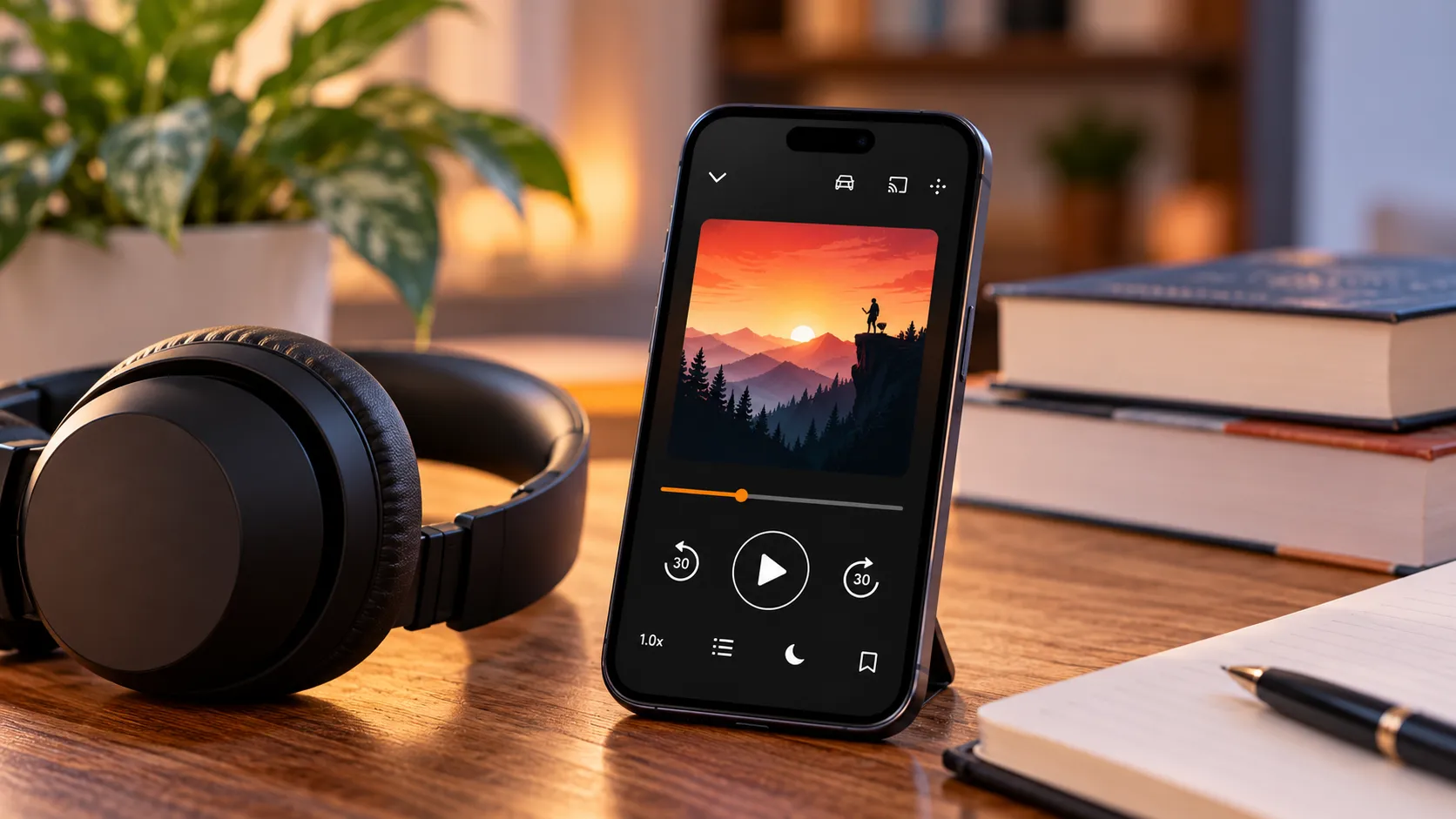
Audible buries a handful of useful features behind menu labels that don't always explain themselves clearly.
The Share button looks like it should lend a book to a friend, but it only sends a recommendation. Read & Listen sounds like something every audiobook owner can turn on, but it requires compatible audiobook and Kindle ebook editions of the same title.
This guide covers seven Audible tips and tricks worth using correctly: saving and returning to specific moments, sharing titles without confusing a recommendation for real access, and setting up Read & Listen once you've confirmed you're eligible.
Clips work in the current Audible apps for iOS and Android. Podcast bookmarks also work in the apps and through Cloud Player. Read & Listen and household sharing come with additional conditions worth checking before assuming they apply to your account.
Audible Clips and Bookmarks: Save Moments Without Losing Your Place
Audible treats audiobooks and podcasts differently when it comes to saving a moment.
Audiobooks use Clips & Notes. Podcasts use Bookmarks & Notes in the mobile app, while Cloud Player uses a Bookmarks menu.
Step 1: Save an Audiobook Passage With +Clip
While an audiobook is playing in the Audible app, tap the +Clip icon.
Audible says the app automatically saves a 30-second clip centered around your current position.
You can then trim that clip to anywhere from 5 to 44 seconds.
Saving a clip also creates a bookmark automatically, so you don't need to mark the position separately.
This works well for a quote you want to revisit, a useful explanation, or a passage you want to attach a note to.
Audio Clips are app-only. Audible says you can create, edit, delete, and play them through its Android and iOS apps, but you can't add or manage clips from the website.
Step 2: Mark a Podcast Position With Bookmarks
Podcasts use bookmarks instead of audiobook clips.
In the Audible app:
Open the podcast episode.
Tap +Bookmark.
Add a note if you want one.
Audible also lets you add podcast bookmarks through Cloud Player.
Unlike clips, bookmarks aren't limited to the mobile app. You can create, access, add notes to, and delete podcast bookmarks from Cloud Player as well.
Step 3: Find and Manage What You've Saved
For an audiobook clip in the app:
Open the title's player.
Tap Clips & Notes.
Select the saved clip.
Choose Clip to play only that excerpt, or Start in Player to resume playback from that point.
For a podcast bookmark in the app:
Open the episode.
Tap Bookmarks & Notes.
Select the bookmark you want.
In Cloud Player, open the main menu and choose Bookmarks.
Audible also says Go to Bookmark or Start in Player, depending on the interface, resumes playback from the saved position.
The useful distinction is simple: audiobook clips are managed in the app, while podcast bookmarks can also be handled in Cloud Player.
Share a Title the Right Way: Recommendation, Not Access
The Share button is the feature most likely to mislead someone browsing Audible's menus for the first time.
It looks like a lending tool. It isn't one.
Step 4: Use Share to Recommend, Not to Hand Over Your Copy
From the app or Audible website, choose Share on a title.
Audible's current help page says you're sending the book's details so the recipient can decide whether to buy it.
You can share a recommendation even if the title isn't in your own Library.
Nothing about your purchased copy transfers to the other person.
Audible's old Send this book feature is no longer available.
So:
Share sends a recommendation.
It does not lend your audiobook.
It does not give the recipient access to your purchased copy.
Step 5: Use Amazon Family or a Kids Profile for Real Household Access
If the goal is letting someone else actually listen to a title you've purchased, Audible points to Amazon Family or a Kids Profile instead.
Audible now documents the rules more clearly than earlier guidance did.
Amazon Family Library Sharing lets you share purchased Audible titles with:
One other adult household profile.
Up to four children.
Between the two adult profiles, purchased Audible titles can be shared.
However, Audible Premium membership credits and titles from the included catalog can't be shared between adults.
Kids work differently.
Audible's Kids Profile lets an account holder create one Kids Profile and choose which titles the child can access.
You can share:
Purchased kid-appropriate titles.
Titles bought with cash or credits.
Eligible children's titles included with your membership.
Some content is restricted from Kids Profile sharing, including certain erotica, ad-supported content, and Virtual Voice titles.
So Share, Amazon Family, and Kids Profile solve three different problems. Don't treat them as interchangeable.
Check Before You Buy: Matching Editions Unlock Read & Listen
Read & Listen is the current name for the feature previously known as Whispersync for Voice.
To use it, Audible says you need compatible versions of both:
The Audible audiobook.
The Kindle ebook.
Both need to be in your Audible and Kindle libraries.
When those editions support Read & Listen, Audible can keep your reading and listening position synced between the two.
Owning both formats also unlocks immersion reading on supported titles, which displays the ebook text inside Audible while the narration plays and highlights words in sync.
Step 6: Use the Read & Listen Filter to Find Eligible Titles
Audible now gives supported titles a Read & Listen badge.
You can also use the Read & Listen filter in the Audible Library to find compatible titles you already have access to.
Audible's current Read & Listen help page also says the product details for a compatible title will identify it as Read & Listen-ready.
If you're shopping for the second format, check the specific Kindle or Audible product page rather than assuming two editions with the same title will necessarily sync.
The editions need to be compatible with Read & Listen.
Audible also says customers who own a matching Kindle ebook may be offered a discounted audiobook price.
There isn't one universal discount amount.
Check the actual price shown for the individual title before buying.
Turn on Read & Listen and Verify the Title Supports It
Step 7: Switch From Listen to Read & Listen
Open an audiobook that carries the Read & Listen badge.
If you own the compatible Kindle ebook too, open the full-screen player and use the toggle above the cover image to switch from:
Listen → Read & Listen
The synchronized ebook text then appears while the professional audiobook narration continues playing.
Words highlight as they're narrated.
Audible's immersion-reading controls also let you adjust:
Font style.
Text size.
Light or dark theme.
Playback speed.
Chapter navigation.
An internet connection is required for the ebook text to load, although Audible says some pages may remain available offline after loading.
Where Read & Listen Is Available Now
The launch-era rollout information in February is no longer the best status check.
Audible's current Read & Listen page says immersion reading and Page Sync are currently available for supported English and German titles in:
United States
United Kingdom
Australia
Germany
Availability still varies by marketplace and title.
Not every audiobook and ebook pair supports Read & Listen, even in a supported country.
The most reliable test is the badge itself.
Open your Audible Library and look for Read & Listen, or check the specific title's product page.
What Audible's Engagement Numbers Do and Don't Prove
When Audible launched immersion reading in February 2026, it said customers who already read while listening consumed nearly twice as much content per month as audiobook-only customers.
Audible also said more than nine in 10 respondents in a US survey of people who read and listen together believed the combination improved retention and comprehension.
Those are Audible's own engagement data and survey findings.
They aren't independent proof that Read & Listen will improve comprehension for every user or every book.
They're better treated as a reason to try the feature if synchronized reading appeals to you, not as a guaranteed learning benefit.
What to Do Next
Start with the features that require no additional purchase.
Save a short audiobook passage with +Clip and make sure it appears under Clips & Notes.
Try a podcast bookmark and confirm it appears under Bookmarks & Notes in the app or Bookmarks in Cloud Player.
When sharing a title, remember that Share sends a recommendation, not access.
If you want actual household access, check Amazon Family or Kids Profile rules for the person you're sharing with.
And before buying a second format specifically for Read & Listen, look for the Read & Listen badge on the exact edition you're considering.
Owning an audiobook and ebook with matching names isn't enough by itself. They need to be compatible editions.
If the badge and Listen/Read & Listen toggle appear, you've confirmed that title works with the feature rather than assuming the rest of your library does too.









Comments
Be the first, drop a comment!